A floor framing plan uses arrows, line types, tags, dimensions, and section references to compress information. Many conventions are familiar across drawing sets, but there is no single universal legend for every office, material, or jurisdiction. Use this page to recognize common categories, then let the current drawing's legend, schedules, notes, and details control.
If you are new to the document itself, start with the floor framing plan guide and come back here for the legend.
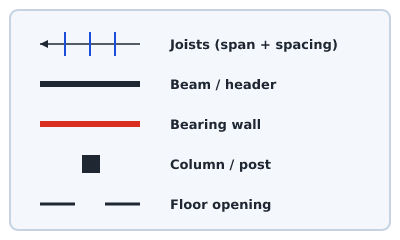 A legend of common framing plan symbols
Joists and span direction
Joists are the repetitive floor members, and the plan has to communicate two things about them: which way they run and how far apart they sit.
- Member direction may be shown by a field of parallel lines or by a span arrow and label. Trace the run to its marked walls or beams; do not classify every wall from the arrow alone.
- On-center spacing is the distance from the center of one joist to the next, written as something like
2x10 JOISTS @ 16" O.C.The standard US values are 12", 16", 19.2", and 24" o.c. Tighter spacing generally means a stiffer floor for the same span. - Member callout identifies the joist type, for example
J1. A schedule elsewhere on the sheet expandsJ1into an actual size and material.
Beams and headers
Where joists terminate at a beam, floor opening, or change of direction, the plan identifies the supporting or trimming members and their references.
- Beams are drawn as a heavier line beneath or across the joist field, with a callout such as
B1. - Headers and trimmer joists frame floor openings: the header runs across the end of the opening, and the doubled trimmer joists at each side carry it. Terminology still varies, so the detail should show which member supports which reaction.
- Member size callouts describe or reference a section. On a US drawing a built-up member is usually written with the ply count first, as in
(3) 2x10 HDR. In this app,2/240×45denotes two 240 × 45 pieces in a built-up member. A real drawing must also identify the intended material, grade or product, connection, and applicable schedule.
Bearing walls
The plan should distinguish walls or lines intended to carry structural reactions from coordination-only partitions.
Conventions vary: a heavier line weight, hatch, dedicated note, tag, or screen color. In Framing Plan, red marks the preliminary wall-support assumption generated from joist direction. You can override it. The highlight does not prove the real wall or support below is adequate.
Openings
A floor opening, such as a stairwell, shaft, or hatch, interrupts the joist field and requires coordinated trimming information.
- The opening is drawn as a gap or a marked rectangle in the floor.
- The joists that would have crossed it are cut and carried by a header at each end, which lands on the doubled trimmer joists at the sides.
- Doors and windows are wall openings and may appear for coordination. Their wall headers are different from framing around a floor opening.
Columns and the structural grid
On larger or multi-bay layouts, a structural grid sets out where loads come down.
- Grid lines are the setting-out lines (often dashed) that establish bays and column positions.
- Columns often align with grid intersections and use filled or outlined shapes, but not every intersection is a column.
- Grid references (A, B, C / 1, 2, 3) let everyone refer to the same point unambiguously.
Dimensions and annotations
Finally, the marks that connect the plan geometry to the wider drawing set:
- Dimensions give the real-world distances: overall sizes, bay widths, opening offsets. US sheets read in feet and inches, for example
12'-6". - Annotations and notes carry spacing, member references, and instructions.
- A title block records the project, drawing name, date, and, on preliminary work, a "not for construction" note.
Reading a callout end to end
Put it together with one label: J1 @ 16" O.C., sitting beside a span arrow, with the two walls at the ends of the run drawn in red.
That reads as: joist reference J1, spaced 16 inches on center, running in the arrow's direction, with the highlighted walls shown as preliminary supports. The schedule or design information must define J1; the wall highlight is not a capacity check.
Put the symbols to work
In Framing Plan, the palette contains structural symbols, openings, loads, and annotations, while the joist field and initial support highlights respond to the layout controls. Open the framing studio to practice the app's conventions, then use how to read a floor framing plan for the complete checking order. On external drawings, always return to that drawing's own legend.